StoryGraph
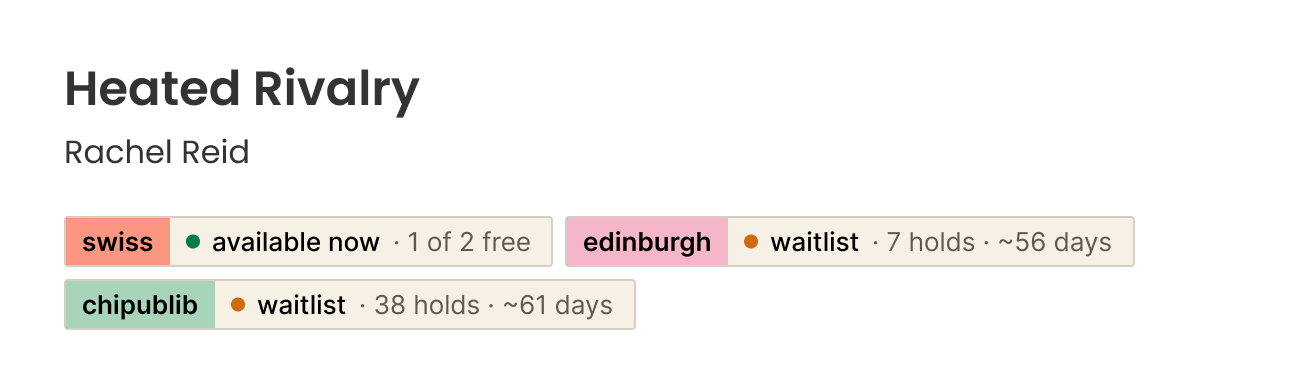
Right under the title.
Every book page gets a pill for each of your libraries: free copies now, or the wait. Any edition counts — it matches title and author, not ISBN.
 borrowbook
Borrowbook is a free Chrome extension. While you browse StoryGraph, Goodreads or Amazon — or highlight any title — it checks your Libby libraries and tells you whether the ebook is there to borrow.
Beloved
Toni Morrison
Available first, then the shortest wait.
One pill per library, right where you already look. Nothing to open, nothing to search.
StoryGraph
Every book page gets a pill for each of your libraries: free copies now, or the wait. Any edition counts — it matches title and author, not ISBN.
Goodreads
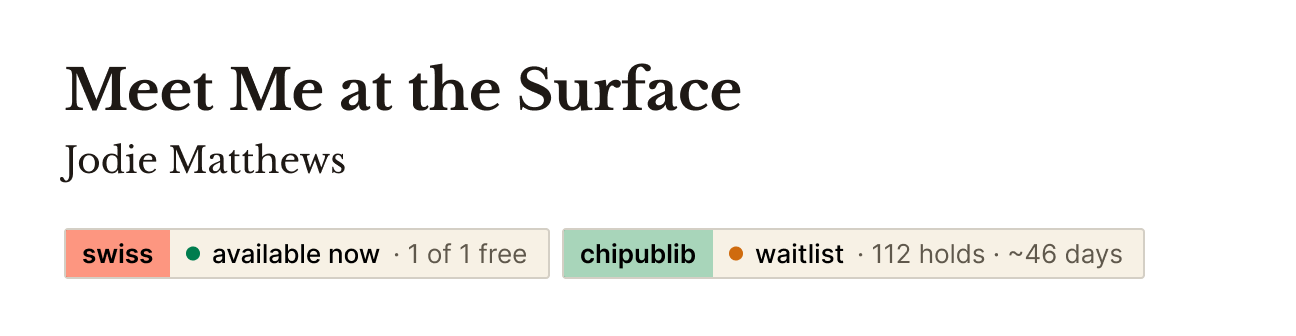
Switch it on in settings and the same pills appear under the author, in the same colours.
Amazon
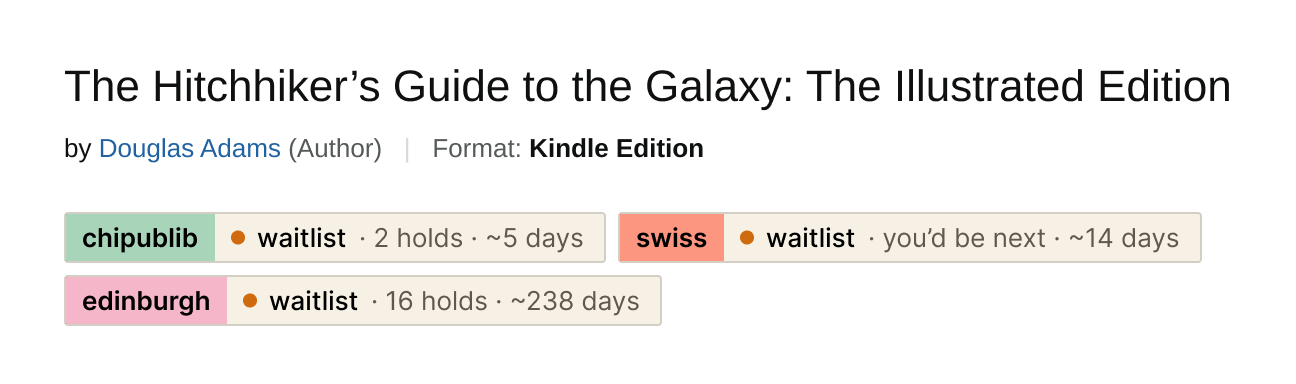
On Kindle, paperback or hardcover pages across 20 Amazon stores — you pick which. If it’s at your library, borrow it instead.
Highlight
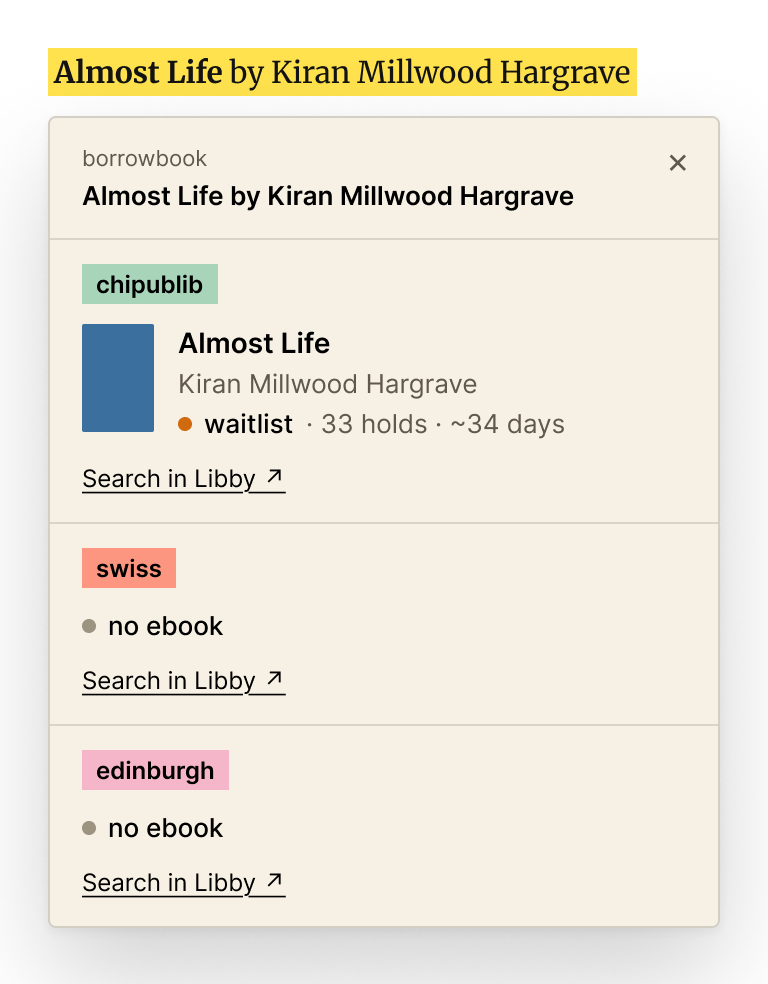
In a review, a newsletter, a list: select “Title by Author”, press ⌥⇧L or right-click. Every library, sorted by wait.
Settings
Paste your Libby link, add every card you have, and give each library its own highlighter.
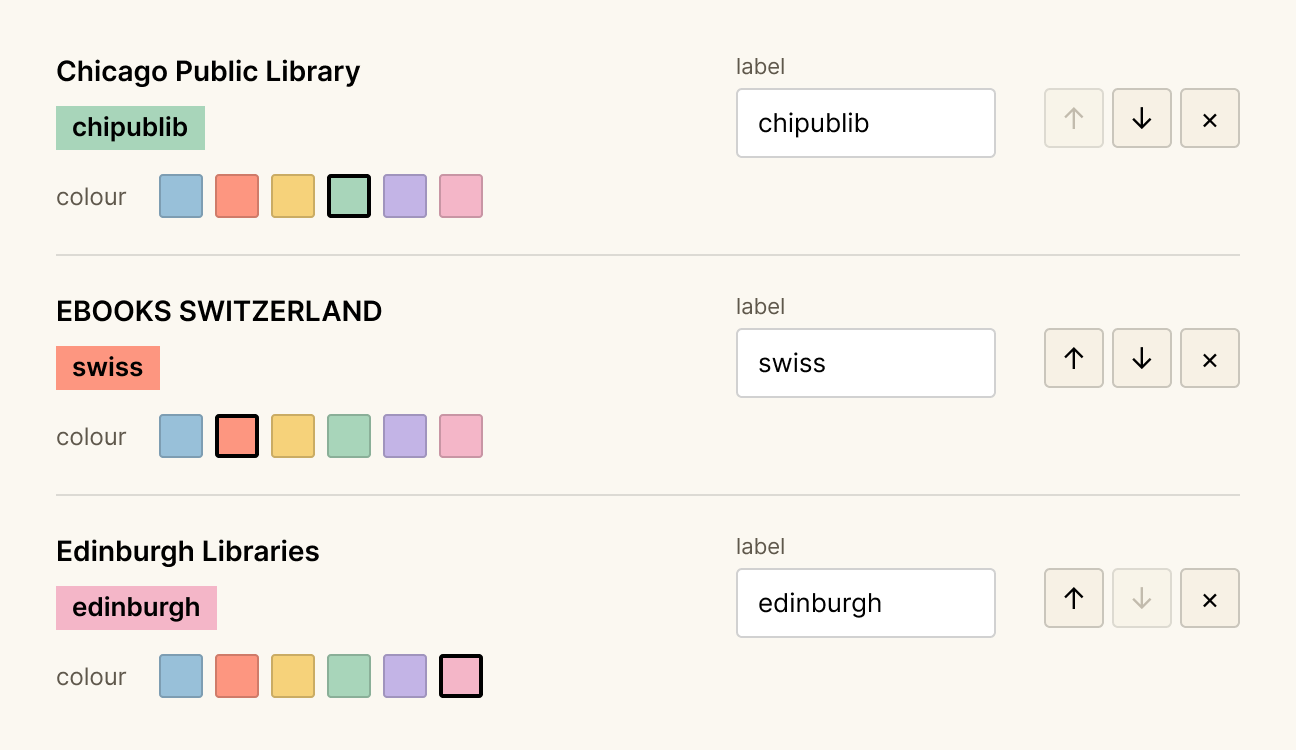
About a minute, and then you never open it again.
Step 1
Open Libby in your browser, pick your library and copy the address — libbyapp.com/library/yourlibrary. Paste it into Borrowbook’s settings.
Step 2
Every library you have a card for, each with its own colour. Switch on Goodreads or Amazon if you use them.
Step 3
Pills appear on book pages by themselves. For anything else, highlight “Title by Author” and press ⌥⇧L.
Free, no account, nothing to sign up for.
The only thing that ever leaves your browser is the title you’re looking at.
Open libbyapp.com and choose your library. The address now ends in /library/yourlibrary — paste the whole link into Borrowbook’s settings.
Borrowbook only counts a match when title and author line up, so a heavily reworded title or a translation can slip through. The “no ebook” pill links straight to a Libby search.
Not yet — Chrome and Chromium browsers for now.